Journey Logger Node
Overview
Section titled “Overview”This node is a background tool that tracks the user’s journey without affecting scenario logic.
Its purpose is to build a memory of the user’s journey. By connecting these nodes to Action outputs (User Action) or widget outputs (Widget Outcome), you can monitor not just the final outcome, but the specific path taken and results from tracked widgets.
Log Types
Section titled “Log Types”User Action — Records specific interactions, such as button clicks or narrative choices. Widget Outcome — Automatically captures results from “Conversation”, “Question” or “Drag to match” widgets.
Configuration Fields
Section titled “Configuration Fields”Identifies the specific action or event triggered by the user.
- In User Action mode: Records the action that led to the current branch or the text of the button that the user clicked (e.g., “Call the nurse”).
- In Widget Outcome mode: Typically contains the name of the completed widget (e.g., “Symptom Quiz”).
Indicates the progression depth. The system can identify the final outcome of the case by looking for the log with the highest Level value.
Description
Section titled “Description”This is essential for future AI-driven feedback and debriefing.
- In User Action mode: Explains the clinical significance of a decision. What to write: Explain the consequence of the choice, for example “User identified early signs of confusion, preventing a fall”.
- In Widget Outcome mode: This field is optional. Manual notes added here will be merged with the automated performance data. Future updates may leverage AI to populate this field with personalized insights from the widget outcome.
Defines the current status (S, D, R, or N). This field helps categorize performance and can be used to suggest the next case in the curriculum.
| State | Name | Description |
|---|---|---|
| S | Stabilizing | Positive progress or recovery. |
| D | Drifting | Uncertain or hesitant progress. |
| R | Deteriorating | Negative progress or worsening condition. |
| N | Neutral / Incomplete | No significant change or missing data. |
This field is automatically calculated in Widget Outcome mode
Log Examples
Section titled “Log Examples”| Log Type | Label | Description (Combined) | State |
|---|---|---|---|
| User Action | Call Doctor | User escalated the situation correctly. | S |
| Widget Outcome | Vitals Quiz | Author Note: Struggled with BP. (Auto: Score 65%, 2 errors) | R |
| Widget Outcome | Talk: Trauma | Author Note: Correctly identified patient history. (Auto: Completed in 4 steps) | D |
| User Action | Routine care | Missed early warning signs, leading to increased safety risks. | R |
| User Action | Pain Assessment | Incorrect assessment tool used, delaying necessary treatment. | D |
How to Connect
Section titled “How to Connect”Logging for Widget Outcome requires a specific connection:
- Special “Outcome” sockets appear on the Run Widget node only when a compatible widget (e.g., Conversation, Question or Drag to match) is selected.
- In the Journey Logger node, you must switch the Log Type to Widget Outcome to enable the corresponding input socket.
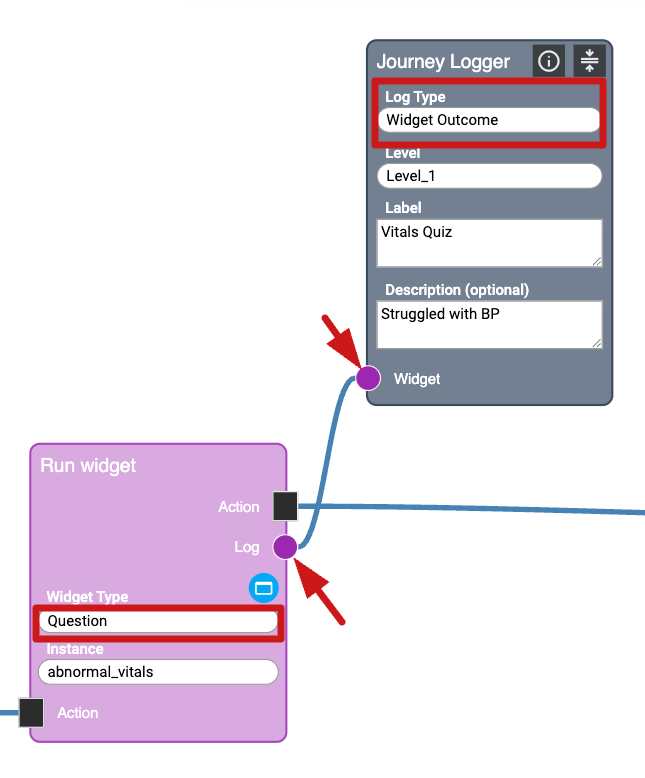
Journey Logger Node Logic
Section titled “Journey Logger Node Logic” execute() { const logType = this.controls["journeyLoggerControl"].logType; if (logType === JourneyLoggerTypeEnum.WidgetOutcome && this.hasInput(InputSocketsEnum.Log)) { const connection = this.getConnections().find((conn: Conn) => conn.target === this.id && conn.targetInput === InputSocketsEnum.Log && conn.sourceOutput === OutputSocketsEnum.Log); if (connection) { const sourceNode = this.getNode(connection.source); if (sourceNode && sourceNode instanceof RunWidgetNode && sourceNode.hasOutput(OutputSocketsEnum.Log)) { this.logJourney(this.serialize(), sourceNode.serialize()); this.isPassed = true; } } } else { this.logJourney(this.serialize()); this.isPassed = true; } }